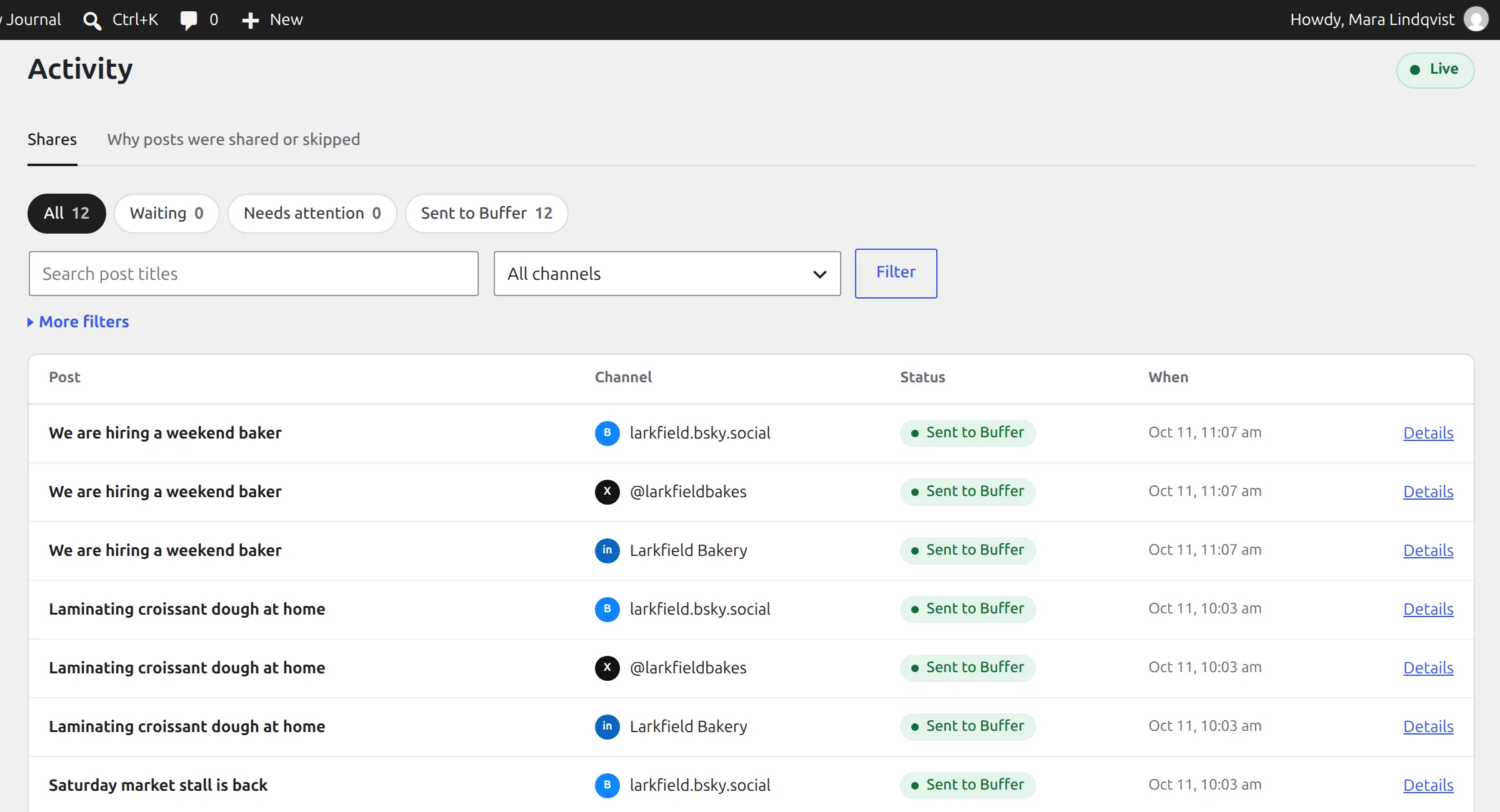
PressQueue, Activity lists every share. Each row is one post going to one channel, with its status and when it last changed. The second tab, "Why posts were shared or skipped", lists every post PressQueue checked and what it decided.
Statuses
| Status | What it means |
|---|---|
| "Test run" | Recorded in test mode. Nothing was sent. |
| "Waiting" | Ready to be sent to Buffer by the background worker. |
| "Sending" | The background worker is sending it to Buffer. |
| "Retrying" | The last try failed for a temporary reason. PressQueue will try again. |
| "On hold" | Held while PressQueue was paused or a rule changed. Resume it to send. |
| "Sent to Buffer" | Buffer accepted it. Buffer publishes it according to the chosen timing. |
| "Failed" | Buffer did not accept it. |
| "Check Buffer" | Buffer may have received it. Check Buffer before you retry, so it is not posted twice. |
| "Cancelled" | Cancelled in PressQueue. |
The chips above the list filter by group: "All", "Waiting", "On hold", "Needs attention", "Sent to Buffer", "Test runs" and "Cancelled". You can search by post title, filter by channel, and open "More filters" for a date range, retries, an exact ID and the rows per page.
Share details
Click a share to open its details. "What happened" lists each step in plain words, for example "Planned when the post was published.", "Sent to Buffer." or "Buffer accepted it." You also see the message that was sent, the timing, and what Buffer said about the share, such as "Waiting in the Buffer queue" or "Saved as a draft in Buffer".
Depending on the status, the page offers "Resume", "Retry" or "Cancel this share". "Technical details" at the bottom holds the identifiers for support requests.
Needs attention
Shares that Buffer did not accept, or that may have reached Buffer without confirmation, show up under "Needs attention". The WordPress dashboard shows a notice with a "Review them" link.
A "Failed" share says why Buffer did not accept it, for example "Buffer said the API key is no longer valid." or "Buffer rejected the post." It also says what to do, such as adding a new key under Channels or checking the message and image of the rule. After you fix the cause, click "Retry".
For temporary problems PressQueue tries again by itself. When it gives up, the share says "PressQueue tried several times and stopped trying automatically." and you can retry it by hand.
Check Buffer
A share with the status "Check Buffer" may have reached Buffer, but Buffer's reply was unclear. PressQueue does not retry it on its own, because that could post the same thing twice. Instead it asks you to look:
- Open Buffer and look for the post in the queue or the sent posts of that channel.
- Back in the share details, tick "I looked for this post in Buffer" and pick what you found.
- "I found it in Buffer": enter the Buffer post ID from the post's address and click "Mark as sent". PressQueue will not send it again.
- "It is not in Buffer": click "Mark as not in Buffer". You can then retry or cancel the share.
- "Cancel it": click "Cancel share". PressQueue stops here.
Your answer is saved in PressQueue only. PressQueue does not contact Buffer and does not remove anything from Buffer.
Why posts were shared or skipped
Each time a post is published, updated or picked in Share old posts, PressQueue checks your rules and records what it decided. This tab shows those decisions with the filters "All", "Matched", "Not shared" and "Blocked by an error". Open "Why" under a post to see the rules checked, the channels and the reasons, for example "No sharing rule matches this post." or "The post is dated more than a day in the past, so it is not shared automatically."
A decision ends in one of five results: "Matched", "Never share", "Sharing off", "Not shared" or "Blocked by an error".
On the Overview and in the editor
The Overview shows the recent activity and the counts for this week. The editor panel shows the shares of the post you are editing, with a "See in Activity" link. The post list has a "Social sharing" column.
What "Sent to Buffer" means
Buffer accepted the share and publishes it according to the timing you chose. Cancelling a share in PressQueue does not delete a post Buffer already published.