PressQueue posts through your Buffer account. You connect it with a Buffer API key. The channels of that account then show up in PressQueue with on and off switches.
Create an API key in Buffer
Open PressQueue, Channels. Under "Create an API key in Buffer", click "Open Buffer API settings". Buffer opens in a new tab on its API settings page. Open the "Personal Access" tab and click "+ New Key". Name the key PressQueue and leave all permissions ticked. Under expiry, pick "1 year", the longest Buffer offers; the default is 30 days. Click "Generate API Key" and copy the key.
There is no "Log in with Buffer" button. Buffer's login flow needs each website's address registered with Buffer in advance, which does not work for a plugin that anyone installs on their own site.
Paste the key
Under "Paste the key here", paste the key and click "Connect". PressQueue checks the key with Buffer, reads the account and its organizations, and loads the channels.
If the key can see more than one Buffer organization, PressQueue asks "Which Buffer organization should PressQueue use?" Pick one and click "Use this organization". You can switch later.
The key is stored encrypted with the security keys and salts of your site. It is only ever sent to Buffer, and it never appears in exports.
Switch on channels
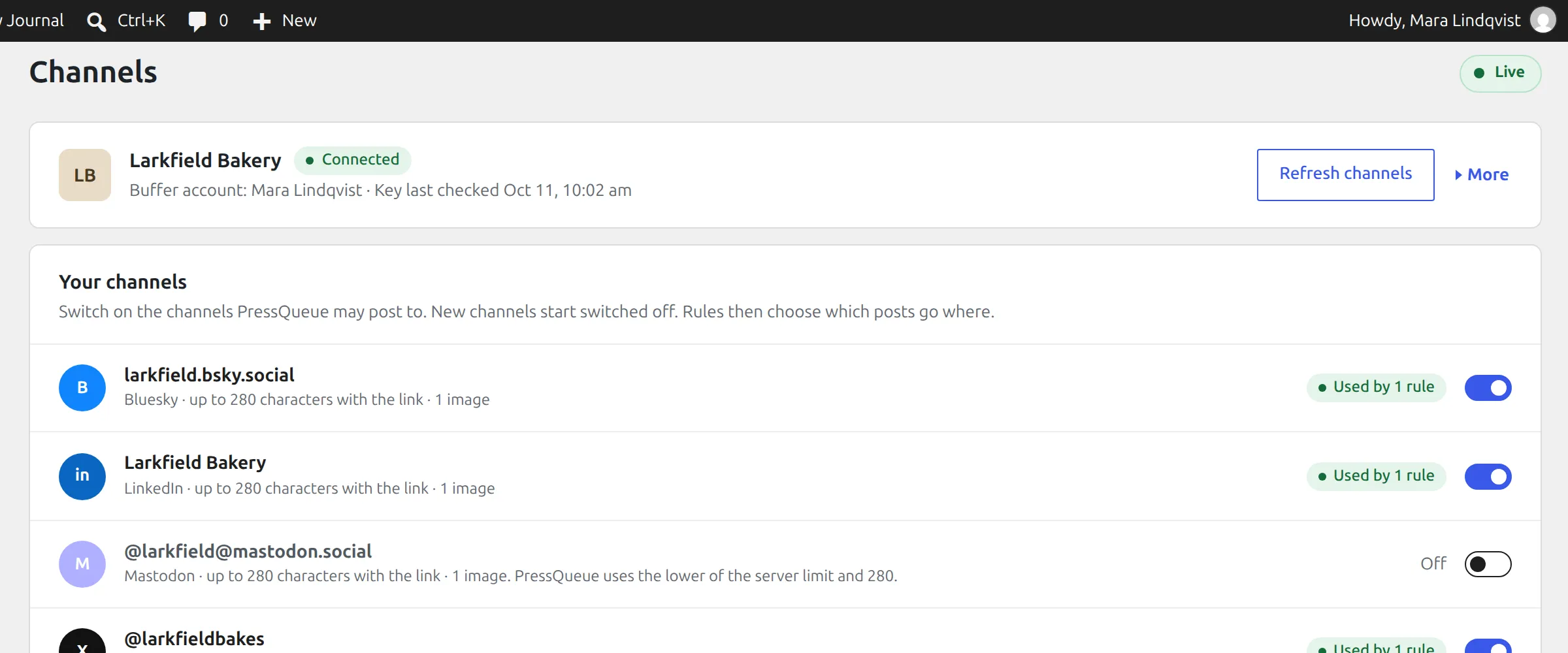
Under "Your channels", each channel has a switch. They all start switched off, and so does every channel PressQueue finds later. Switch on the channels PressQueue may post to. Rules then decide which posts go where.
A channel that is on but not used by any rule shows "Not in a rule yet". Add it to a rule to share posts there.
PressQueue can post to LinkedIn, X, Bluesky, Mastodon, Threads and Facebook. A channel of another kind, such as Instagram or Pinterest, shows up as unsupported. PressQueue cannot post there.
Refresh channels
When you add a social account in Buffer, click "Refresh channels" in PressQueue. New channels start switched off.
More options for an account
Each connected account has a "More" menu:
- "Buffer organization" switches to another organization the key can see. Channels from the old organization stop, and channels from the new one start switched off.
- "Turn off" pauses sharing through this account. The key and your channel switches stay saved. "Turn on" brings it back.
- "Replace API key" takes a new key from the same Buffer account. Channels and rules stay as they are.
- "Disconnect" deletes the saved key. Rules skip the account's channels until you connect the same Buffer account again, which brings its channels back.
More than one Buffer account
Use "Add another Buffer account" at the bottom of the Channels page and paste a key from the other account. A key from an account you already connected lets you add its other organizations.
When the key stops working
When the key expires or someone deletes it in Buffer, the account shows "Key no longer works" and nothing is shared through it. Create a new key in Buffer, or regenerate the old one there, and paste it under "Paste a new API key". Your channels and rules stay.
If you change the security keys and salts in wp-config.php, PressQueue can no longer read the saved key. Open "More" and use "Replace API key".
If PressQueue says it cannot store a key on this server, the PHP Sodium extension is missing or the keys and salts in wp-config.php are still placeholders. The page tells you which one it is.