Rules live under PressQueue, Rules. There are two kinds. A sharing rule sends matching posts to channels. A "never share" rule keeps matching posts off social media and wins over every sharing rule.
The quick start rule
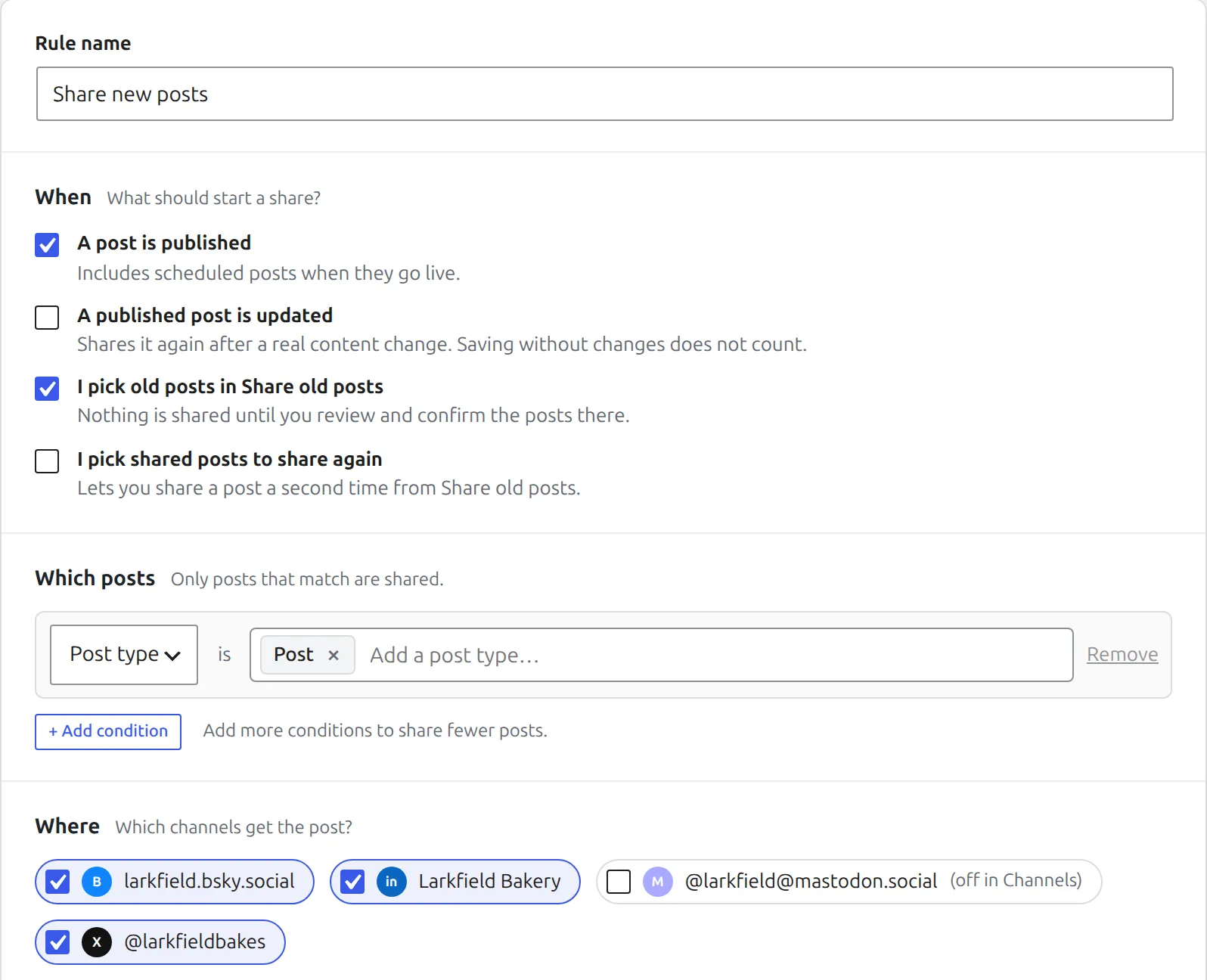
When you have no rules yet, the Rules page offers "Share every new post to all my channels". One click creates a rule named "Share new posts":
- It runs when a post is published, including scheduled posts when they go live.
- It sends your posts to every channel you switched on.
- The message is the post title, followed by the link.
- Shares go to the end of your Buffer queue.
- The featured image is added when the post has one.
- It also takes part in Share old posts.
It starts switched off. Test it, then turn it on.
The parts of a rule
"Add sharing rule" opens the rule editor. Give the rule a name, for example "Share new recipes". The editor then has these sections.
"When" asks what should start a share. Tick one or more:
- "A post is published". Includes scheduled posts when they go live.
- "A published post is updated". Shares the post again after its content changes. Saving without changes does not count.
- "I pick old posts in Share old posts". Nothing is shared until you review and confirm the posts there.
- "I pick shared posts to share again". Lets you share a post a second time from Share old posts.
"Which posts" holds the conditions: post type, category, tag, author or custom field. See Conditions.
"Where" lists your channels. Tick the ones this rule posts to. A channel that is off in Channels is skipped until you switch it on.
"Message" is the text before the link. See Messages.
"Timing" says where the share goes in Buffer: the end of the queue, the top of the queue, right away or a Buffer draft. See Timing.
"Image" picks the featured image, a social image, an image chosen in each post, or no image. See Images.
"Advanced" holds the order number, the custom fields this rule may read, and the messages as JSON.
Save and test
Click "Save and test". New rules start switched off, and changing what a rule does switches it off again until you test it.
The test page runs the rule against your most recent posts without sharing anything. You pick how many posts to test and whether to test them as published, updated or picked in Share old posts. Each post shows one of these results:
- "Would be shared", with the channels it would go to.
- "Not affected by this rule", with the reason, for example because the post is in a category the rule leaves out.
- "Stopped by an error", when the rule has a problem.
"Show messages" opens the text each channel would get. "Test with a specific post" finds a post by title and tests only that one. When you test as published, posts you published earlier are tested as if they were published today.
When it looks right, click "Turn on this rule".
Turning rules on and off
On the Rules page each rule has a switch, plus Edit and Test links. A rule that is off says "Off. Test it, then switch it on." or "Tested. Switch it on when you are ready."
To delete a rule, open it, turn it off and click "Delete rule". If the rule still has shares that are waiting, finish or cancel them in Activity first. Past activity stays, but it no longer shows the rule's name.
When several rules match
A post can match more than one sharing rule. For each channel, PressQueue uses the matching rule with the lowest order number. The order number is under "Advanced", "Order". "Never share" rules always win over sharing rules.
Message templates
The "Message templates" tab under Rules holds messages you use often. Click "New message template", write the message with placeholders and save it. New templates start hidden. Switch one on so that it is offered in rules.
When you edit a rule, pick a template under "Start from a saved template" and click "Use this template". The message is copied into the rule. Later changes to the template do not change the rule.